How to Save Facebook Reels on iPhone and Android
Jul 5, 2026
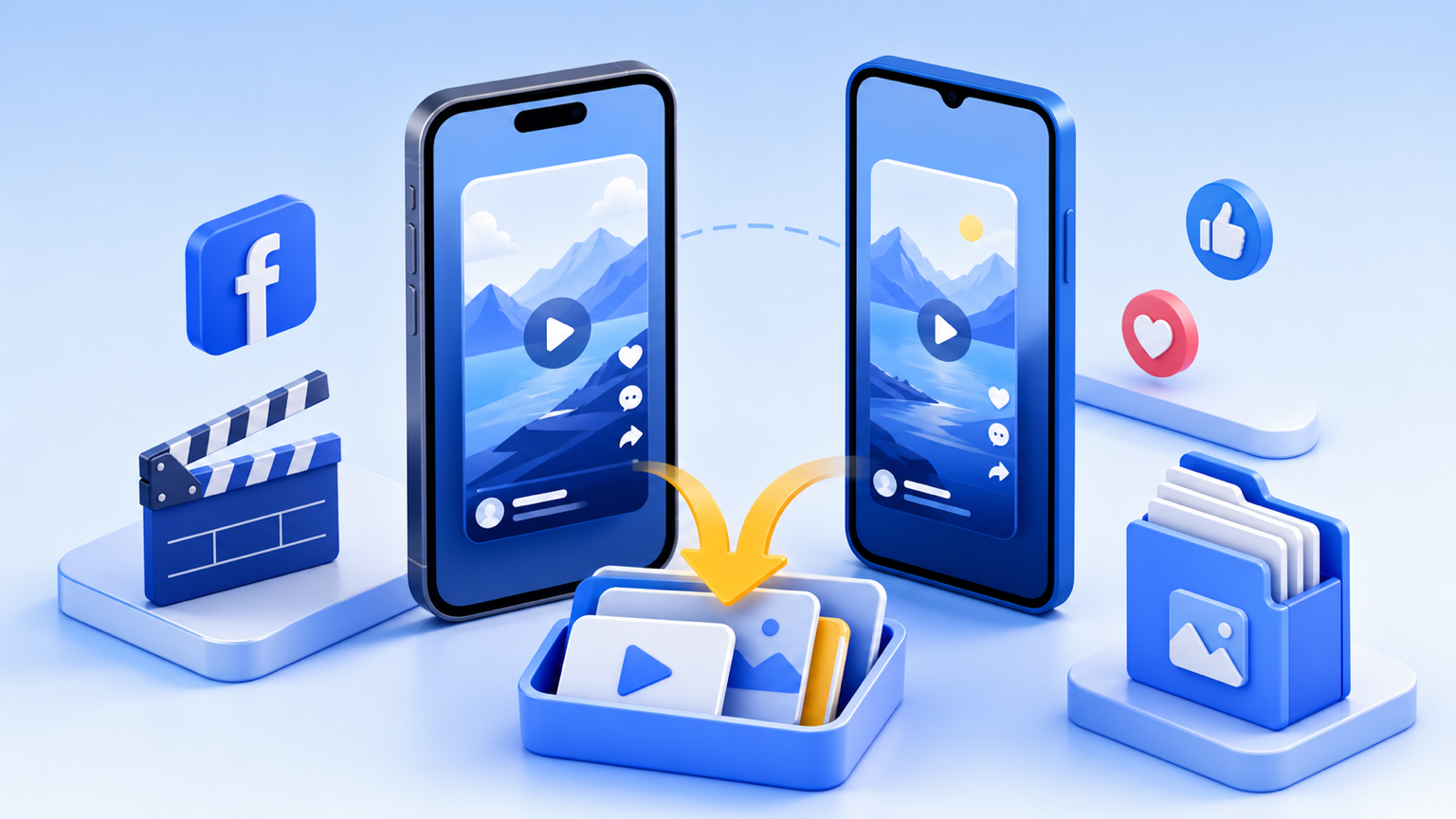
Saving a Facebook Reel on your phone is confusing because Facebook's Save button does not actually download the video. It only bookmarks the Reel inside the app. If you want the file in Photos, Files, Gallery, or Downloads, you need to copy the public Reel link and download it as an MP4.
This guide shows the exact steps for iPhone and Android using the Facebook Reels downloader.
Quick steps
- Open the Reel in the Facebook app.
- Tap Share.
- Tap Copy link.
- Open the Facebook downloader in your browser.
- Paste the link and press Download.
- Save the MP4 to your phone.
If the Reel is public, this usually takes less than a minute.
Before you start: public Reel checklist
Use this quick checklist before spending time troubleshooting:
| Check | Why it matters |
|---|---|
| The Reel opens in a browser | If it only opens for your account, it may not be public. |
| The post has a Share or Copy link option | You need the direct Reel URL, not a profile URL. |
| The Reel is still available | Deleted Reels cannot be downloaded. |
| The Reel is not in a private group | Private group media is not publicly resolvable. |
| You are using Safari/Chrome/Firefox, not only the Facebook in-app browser | Real browsers handle file downloads better. |
If all five are true, the download is usually straightforward. If one fails, the issue is probably access or link quality rather than your phone.
Save a Facebook Reel on iPhone
On iPhone, the file may first go to Safari's downloads area or the Files app. That is normal.
- Open Facebook and find the Reel.
- Tap the Share arrow.
- Choose Copy link.
- Open Safari or Chrome.
- Go to the Facebook downloader.
- Paste the link and tap Download.
- When the MP4 opens or downloads, tap Share.
- Choose Save Video to put it in Photos.
If you do not see Save Video, open the file from the Files app first, then tap Share again. Some iPhone browsers save downloaded media to Files before Photos.
iPhone: Files vs. Photos
This is the part that confuses most iPhone users. A successful download does not always appear in Photos immediately.
| Where you see the file | What it means | Next step |
|---|---|---|
| Safari downloads icon | The MP4 downloaded but has not been moved | Tap it, open the file, then Share → Save Video. |
| Files app → Downloads | Safari saved the file to storage | Open it, then Share → Save Video if you want it in Photos. |
| Photos app | The file is already in your camera roll | Nothing else needed. |
| Nowhere visible | Browser may have blocked or hidden the download | Check Safari settings, retry in Chrome, or download again. |
For repeat use, Safari is usually the cleanest option on iPhone because it exposes the downloads icon near the address bar.
Save a Facebook Reel on Android
Android usually saves the MP4 more directly.
- Open the Reel in the Facebook app.
- Tap Share.
- Tap Copy link.
- Open Chrome, Samsung Internet, Firefox, or your normal browser.
- Paste the link into the Facebook downloader.
- Tap Download.
- Open the file from Downloads, Gallery, or your browser's download tray.
If the video does not appear in Gallery immediately, check the Files or Downloads app. Some Android phones need a moment to scan new media before it shows in the gallery.
Android: Downloads vs. Gallery
Android is more direct than iPhone, but different brands organize files differently.
| Phone/browser | First place to check |
|---|---|
| Chrome on Android | Chrome menu → Downloads |
| Samsung Internet | Browser menu → Downloads |
| Google Files | Downloads folder |
| Gallery app | Recent videos or Downloads album |
| Google Photos | Library → Photos on device |
If the file plays in Downloads but not Gallery, the download worked. The gallery just has not indexed the video yet.
Why Facebook's Save button is not enough
The built-in Save button is useful if you only want to find the Reel again later inside Facebook. It is not a download.
With the in-app Save button:
- The file is not stored on your phone.
- You cannot use it in a video editor.
- You cannot move it to another device.
- If the post is removed, your saved item may stop working.
With an MP4 download:
- You get a real file.
- You can watch offline.
- You can move it to Photos, Files, Drive, or your computer.
- You can keep a personal copy of public content you have permission to save.
Does this work for all Facebook Reels?
No. It works for public Reels that Facebook makes available through a public link. It will not work for every Reel.
You cannot download:
- Private Reels
- Friends-only posts
- Reels in private groups
- Deleted posts
- Age-restricted or region-locked media
If a Reel cannot be viewed without special access, VidGrably cannot resolve it. That is a privacy boundary, not a bug.
Where did the Reel save?
On iPhone: check Safari downloads, the Files app, or Photos if you tapped Save Video.
On Android: check Downloads, Gallery, Google Photos, or the browser download list.
In Chrome: tap the three-dot menu and open Downloads.
In Safari: tap the downloads icon near the address bar, then open the file.
Once you find the MP4, you can move it, rename it, or share it like any other video file.
Why the Reel may save without sound
Some Reels use audio that is licensed, muted, removed, or served separately depending on region and account access. If the source Facebook provides to public viewers has no audio, the downloaded MP4 may also be silent.
Try these checks:
- Play the Reel in a browser while logged out or in a private window.
- Confirm the Reel has sound for public viewers, not only inside your account.
- Try another public Reel to see whether the issue is one post or every post.
VidGrably saves what the public source provides. It cannot restore audio that Facebook does not expose with the public video.
Better than screen recording
Screen recording seems easy, but it creates a worse copy. It may capture the Facebook interface, comments, buttons, notification sounds, and frame drops. A link-based download saves the media itself as an MP4, so the result is cleaner and easier to reuse for personal projects.
If you want the general Facebook video workflow, read Facebook Video to MP4. If you only care about Reels, stay with this guide.
Screen recording vs. downloading the Reel
| Method | Pros | Cons |
|---|---|---|
| Download as MP4 | Clean file, no UI overlay, easier to move | Public Reels only. |
| Screen record | Works when no download is available | Lower quality, notifications, buttons, captions, and dropped frames. |
| Facebook Save button | Easy inside Facebook | Bookmark only; not a real file. |
| Third-party mobile app | Sometimes convenient | Extra install, ads, permissions, and privacy risk. |
If the Reel is public, download the MP4. Use screen recording only as a last resort for your own viewing, and avoid reposting anything you do not have rights to use.
FAQ
Can I save Facebook Reels to my camera roll?
Yes. On iPhone, download the MP4, open it from Files or Safari downloads, tap Share, and choose Save Video. On Android, the file usually appears in Downloads or Gallery.
Do I need a Facebook Reel downloader app?
No. A browser-based downloader is enough for public Reel links. You do not need to install an APK, extension, or mobile app.
Why is the download button not showing?
The Reel may be private, deleted, restricted, or the copied link may not point to the direct Reel post.
Can I save Reels from private groups?
No. VidGrably only supports public links.
Why does the Reel save to Files instead of Photos on iPhone?
Safari often saves downloaded files to Files first. Open the MP4 from Files, tap Share, then choose Save Video.
Can I save a Facebook Reel without logging in?
If the Reel is public, yes. VidGrably only needs the public link and does not ask for your Facebook login.
Will the downloaded Reel be HD?
VidGrably saves the best public version Facebook provides. If the public source is HD, the MP4 can be HD.
Can I edit the downloaded Reel?
Technically yes, because MP4 works in most editors. Only edit or republish Reels you own or have permission to use.
Save the Reel now
Open the Reel, copy its public link, paste it into the Facebook downloader, and save the MP4. That is the clean way to get a Facebook Reel onto iPhone or Android without recording your screen.