How to Download TikTok Without Watermark — Fast, Free, No App
Jun 9, 2026
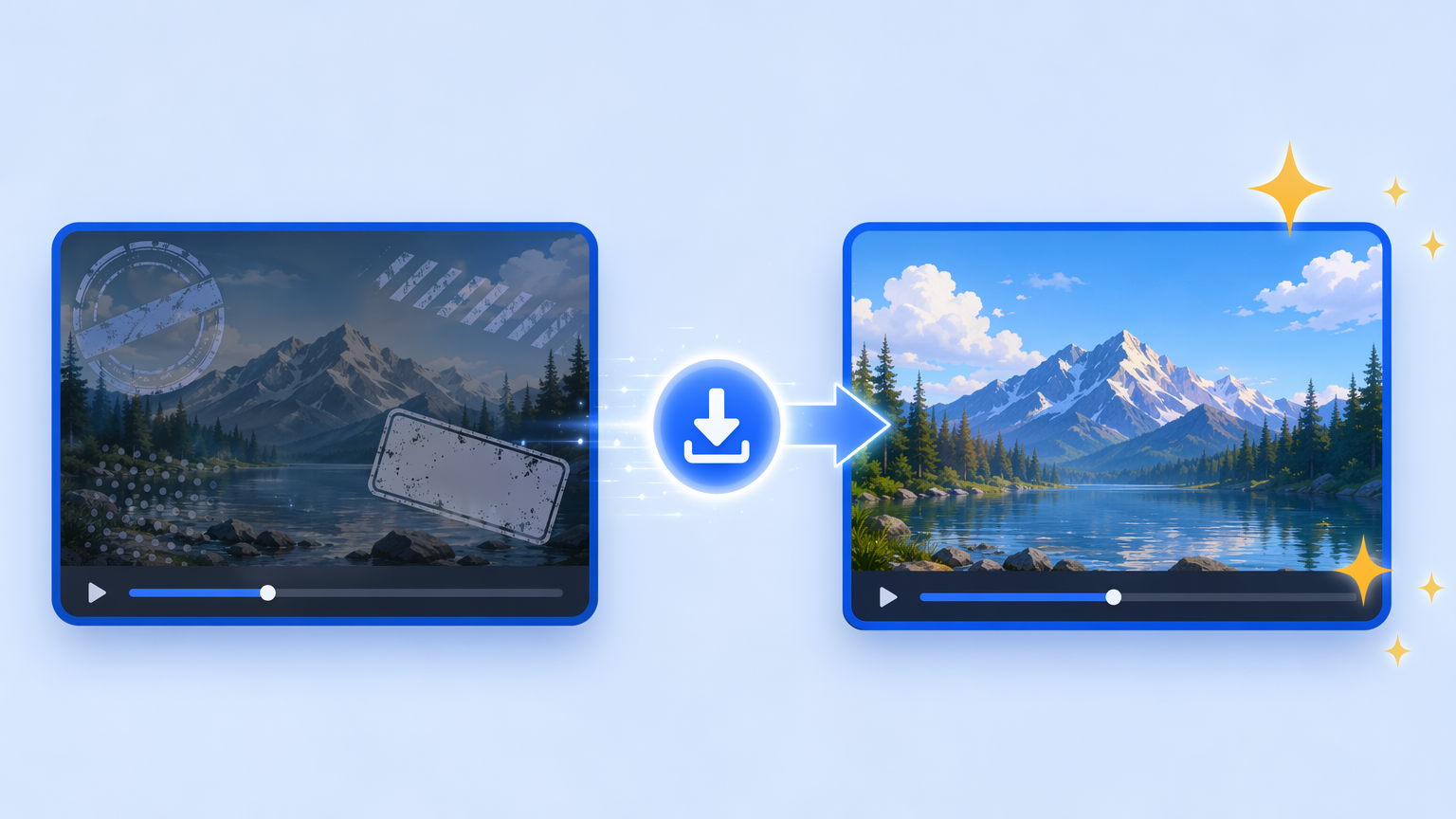
To download a TikTok without the watermark, copy the post's share link, paste it into the TikTok downloader, and press Download — the MP4 you save is clean, with no username, logo, or bouncing overlay. VidGrably resolves the original source file rather than the stamped share copy, so there's nothing to "remove" after the fact. The whole thing takes just seconds for a typical clip and works in any browser on Windows, Mac, iPhone, or Android.
The fastest way to download a TikTok without watermark
Here's the entire process — three steps, no account, no install:
- Copy the link. In the TikTok app or on tiktok.com, tap Share, then Copy link. On a computer, you can also copy the URL straight from the address bar (it looks like
https://www.tiktok.com/@user/video/123…). Shortenedvm.tiktok.comlinks work too. - Paste it into VidGrably. Drop the link into the box on the TikTok downloader page and press Download. It takes a second or two to resolve the source.
- Save the clean file. Tap the download button and the watermark-free MP4 saves straight to your device.
That's it — no app to install, no browser extension, and no queue to wait in. (Briefly: the watermark exists because TikTok stamps it onto the share copy for attribution, which is exactly why you can't scrub it off a file you've already saved with the in-app button — more on that in why your TikTok video has a watermark.)
On your phone (iOS and Android)
This is where most people start, and it's the same three steps with a couple of mobile-specific notes:
- Copy the link from inside the app. Tap the Share arrow (right side of the video) → Copy link. Don't long-press the caption — that copies the wrong text. See common mistakes below.
- Switch to your browser and paste. Open Safari (iPhone) or Chrome (Android), go to the downloader, paste, and press Download.
- Where it lands: on Android the MP4 usually drops into Downloads or your Gallery automatically.
- iPhone quirk: iOS sometimes opens the video in a new tab instead of saving it. If that happens, tap the Share icon in Safari → Save Video, and it goes into your Photos camera roll. On newer iOS you may instead see the file appear in the Files app under Downloads — either way, it's saved clean.
No AirDrop, no cable, no third-party app required.
On desktop (Windows and Mac)
On a computer the flow is even quicker because you copy and paste with a keyboard:
- Copy the URL from your browser's address bar, or use Share → Copy link in the web app.
- Paste and download at the TikTok downloader.
- Where it lands: your Downloads folder. On Windows, press Ctrl + J to open download history; on Mac, press Cmd + J (or click the toolbar download icon) to find it, then reveal it in Finder.
Desktop is the better choice if you're saving several clips or planning to edit them — there's a fuller, PC-specific walkthrough in how to download TikTok videos on PC.
Why the in-app Save button isn't enough
TikTok's built-in Save video button is the obvious option, but it has two problems for anyone who wants a clean file:
- It stamps the share watermark on. The moving username and bouncing TikTok logo get baked into the picture — you can't cleanly crop or erase them afterward.
- It's often disabled. Many creators turn off in-app downloads, and it's blocked entirely in some regions, so the button frequently isn't there at all.
Resolving the original source sidesteps both. You always get a clean MP4, and it works on any public video regardless of whether the creator allowed in-app saving.
You keep the original quality
Because VidGrably pulls the original source rather than screen-recording or re-encoding, the saved file keeps the resolution TikTok served — it automatically grabs the highest resolution available for that video, with no extra compression on our end. One thing to keep in mind: the ceiling is set by the upload. If the creator posted a lower-resolution clip, that's the most any tool can retrieve. For the sharpest result, download from the original post, not a re-shared copy that's already been through another round of compression.
Common mistakes that leave the watermark on
If you ended up with a stamped or low-quality file, it's almost always one of these:
- Copying the wrong thing. Use Share → Copy link, not a long-press on the caption or a hashtag. A clipped or partial link can't be resolved.
- Using a screen recording. Recording the screen always captures the watermark and usually drops quality — there's no clean version to recover from it.
- Passing the clip through another app first. Re-sharing through a third-party app can bake in that app's branding before you ever download.
- Downloading a re-share instead of the source. A reposted copy may already carry someone else's overlay or compression. Go to the original creator's post.
When a download won't go through
If a specific video fails, it's usually the video itself, not the tool. These can't be downloaded by any downloader because the source isn't reachable:
- Private or protected accounts
- Deleted videos
- Age-restricted or region-locked content
- Photo-carousel posts with no actual video
A few quick checks for everything else: re-copy the full link (a truncated URL won't resolve), confirm the TikTok page itself loads, and try a different browser if an aggressive ad-blocker is interfering. Any public TikTok should work. For a fuller checklist, see video downloader not working? 7 common fixes.
A quick legal note
Only download TikTok videos you own, that are public, or that you have permission to use. Saving a clip for personal, offline viewing is generally fine, but redistributing or monetizing someone else's content without permission can infringe their copyright — when in doubt, credit the creator or ask first. There's a fuller breakdown in is it legal to download TikTok and X videos?.
The bottom line
Downloading a TikTok without the watermark comes down to three moves: copy the share link, paste it into the TikTok downloader, and save the clean MP4 — on a phone or a computer, in any browser, with no app and no extension. Skip the in-app Save button and the screen recorder, start from the original post, and you'll get a watermark-free file at full quality every time.